
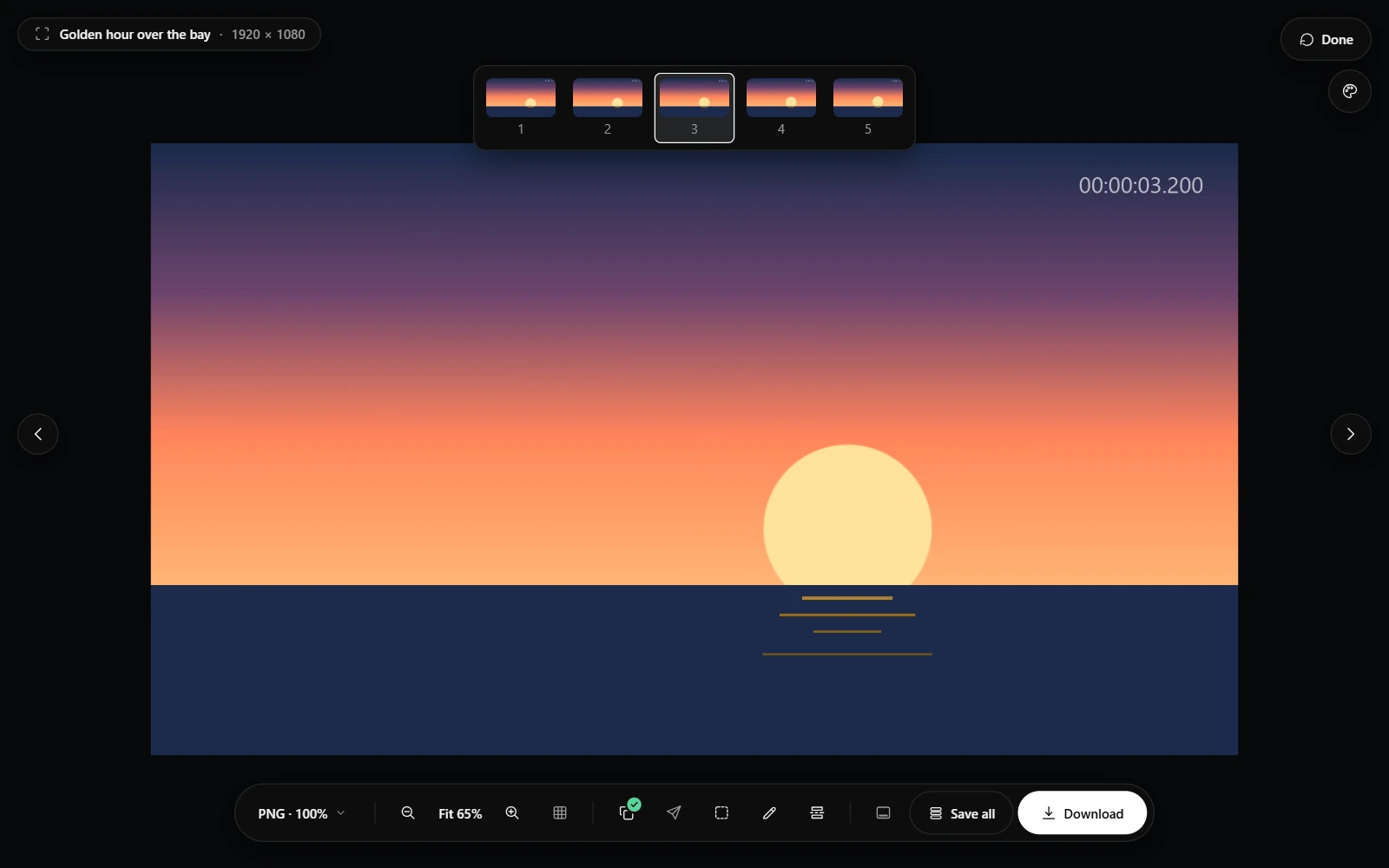
Video frames
Choose Video in the popup, or press Alt+Shift+S, to save the frame a video is showing as a PNG at its own size. A copy-protected video is refused with a message, never saved as a black image.
Burst, subtitles and folders
Burst takes five frames around the moment and puts the video back as it was; the result page lets you pick one or save all five. Include subtitles puts the captions into the frame. Frames file into a folder per platform, on disk and in History.
A capture button on videos
Off until you turn it on. Point at a video and press the camera to save its frame; its menu downloads straight into the platform folder, sets burst and subtitles for one site, or hides the button there.
A new shortcut
Alt+Shift+S captures a video frame on new installs, and Slices no longer has a default shortcut. Existing installs keep Alt+Shift+S on Slices until they change it at chrome://extensions/shortcuts.
Getting the update
- Chrome updates extensions on its own, usually within a day or two of a release.
- To check now, open chrome://extensions, turn on Developer mode, and choose Update.
- Look for version 1.5.0 on ScrollSnapshot's card.