
Take a frame
- Pause or play the video to the moment you want.
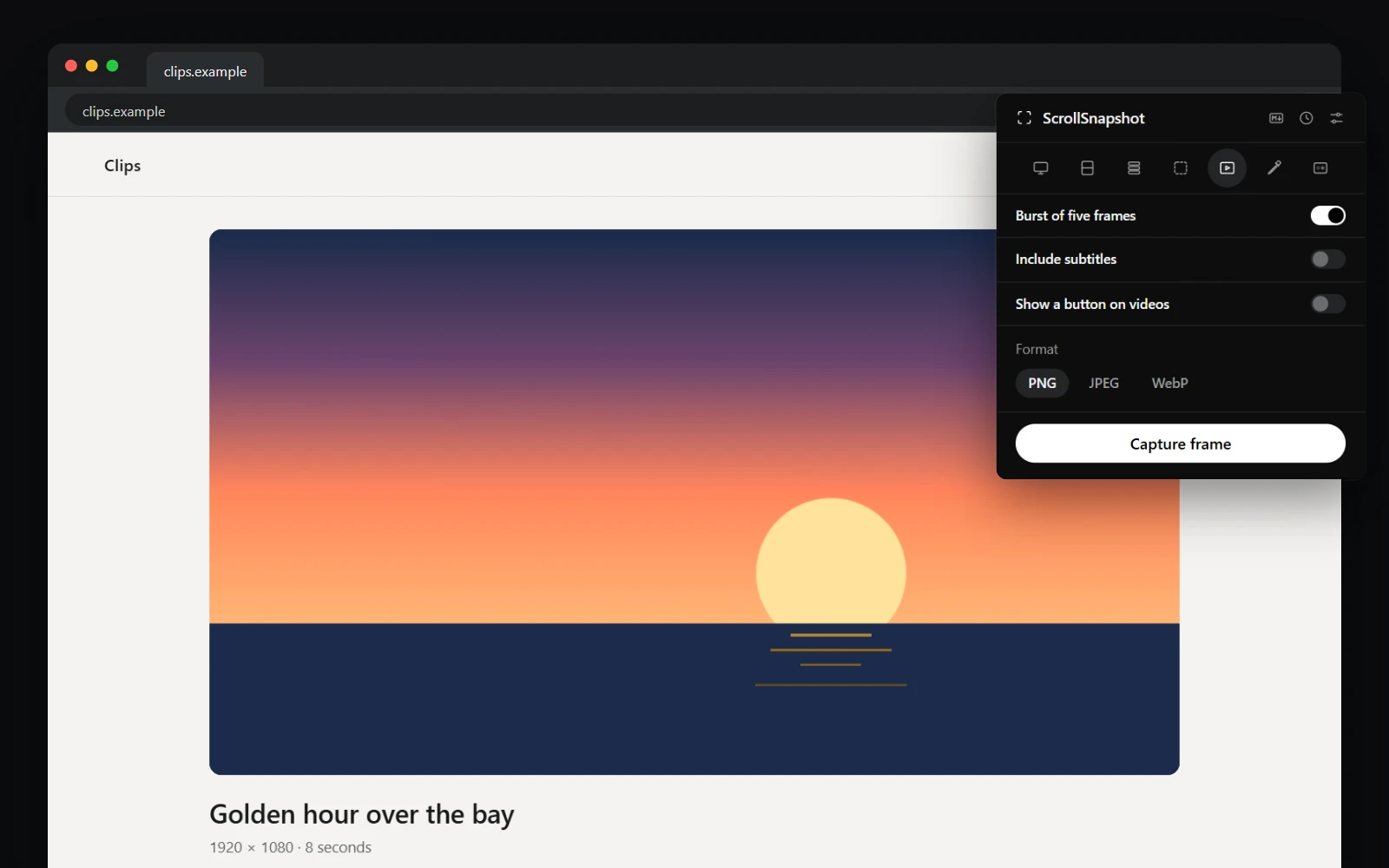
- Open ScrollSnapshot and choose Video, the play icon in the row of modes.
- Press Capture frame. The frame opens on the result page, ready to crop, edit, copy or download.
Without opening the popup
Press Alt+Shift+S on a page with a video. It is the only way in from a fullscreen video, where the toolbar is hidden: the frame is saved, a short Frame saved note appears over the video, and the video stays fullscreen and keeps playing. The result opens in a tab behind it.
On installs from before 1.5, Alt+Shift+S stays on Slices until you change it at chrome://extensions/shortcuts.
Which video
The video in fullscreen, if there is one. Otherwise the largest one on screen that is playing, then the largest one on screen. Videos inside embedded players on another site are reached too. If the only video is out of view, ScrollSnapshot asks you to scroll it into view.
When a site holds the pixels back
A copy-protected video, such as one from a streaming service, is refused with a message. ScrollSnapshot never saves a black image instead.
A video under a live blur cover is taken from the screen, at the size it is shown and without a burst, so the cover is in the frame. A fullscreen video under a cover is refused, since covers cannot draw over fullscreen.
Some sites play video in a way that won't hand its pixels over. For a video on the page itself, ScrollSnapshot takes the frame from the screen instead, at the size it is shown, and the result says so. The player's buttons and overlays are left out of that picture and come back untouched. A video embedded from another site is refused, with a note to open it on its own page.
Subtitles
Turn on Include subtitles, beside Burst in the popup or under Settings → Capture, to put the video's captions into the frame. Standard captions are drawn at the video's full resolution. Where a site draws its own subtitles, the frame is taken from the screen so they appear exactly as the site shows them, and you get one frame even with Burst on.
Where frames go
Frames download into ScrollSnapshot/<Platform>/ in your downloads folder, and file into a History folder per platform: YouTube, Twitch, TikTok, Douyin, Instagram, Vimeo, or Other videos for any other site. History has a Video filter. Turn this off with File video frames into a folder per platform under Settings → Output.