
Turn it on
ScrollSnapshot offers the button once, after your first video frame. You can also switch it with Show a button on videos in the popup's Video mode, or Show a capture button on videos under Settings → Capture. While it is off, no script runs on your pages.
Use it
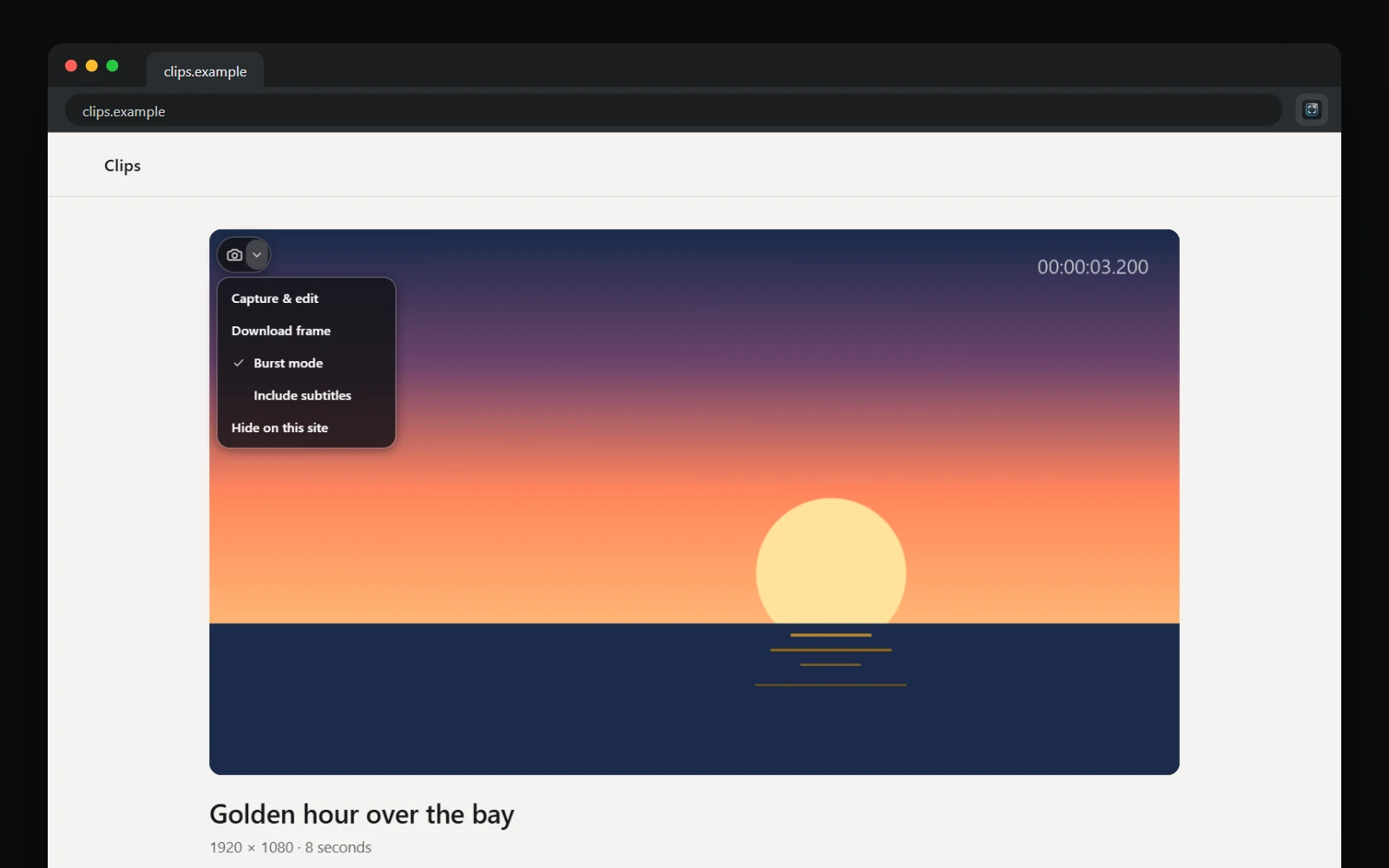
Point at a video and the camera appears in the first free corner, clear of the player's own buttons; you can pin a corner under Settings → Capture. Like a player's controls, it hides when the pointer rests and returns when you move. Press the camera to capture the frame and open it. It works in fullscreen too.
The menu
The arrow beside the camera opens Capture & edit, which opens the frame straight in the editor; Download frame, which saves into the platform folder with a Frame saved note and no new tab; Burst mode and Include subtitles, which apply to that site only; and Hide on this site.
Bring it back on a site
Sites where you hid the button, and sites with their own burst and subtitle choices, are listed under Settings → Capture, each with Remove or Reset. On a hidden site, the popup's Video mode says so, with Show to bring the button back at once.