Open the toolbar
You can also give the toolbar a keyboard shortcut of your own: Open the live blur toolbar has no default key, so set one at chrome://extensions/shortcuts.
- Open ScrollSnapshot and press the blur button, beside the colour picker in the row of modes.
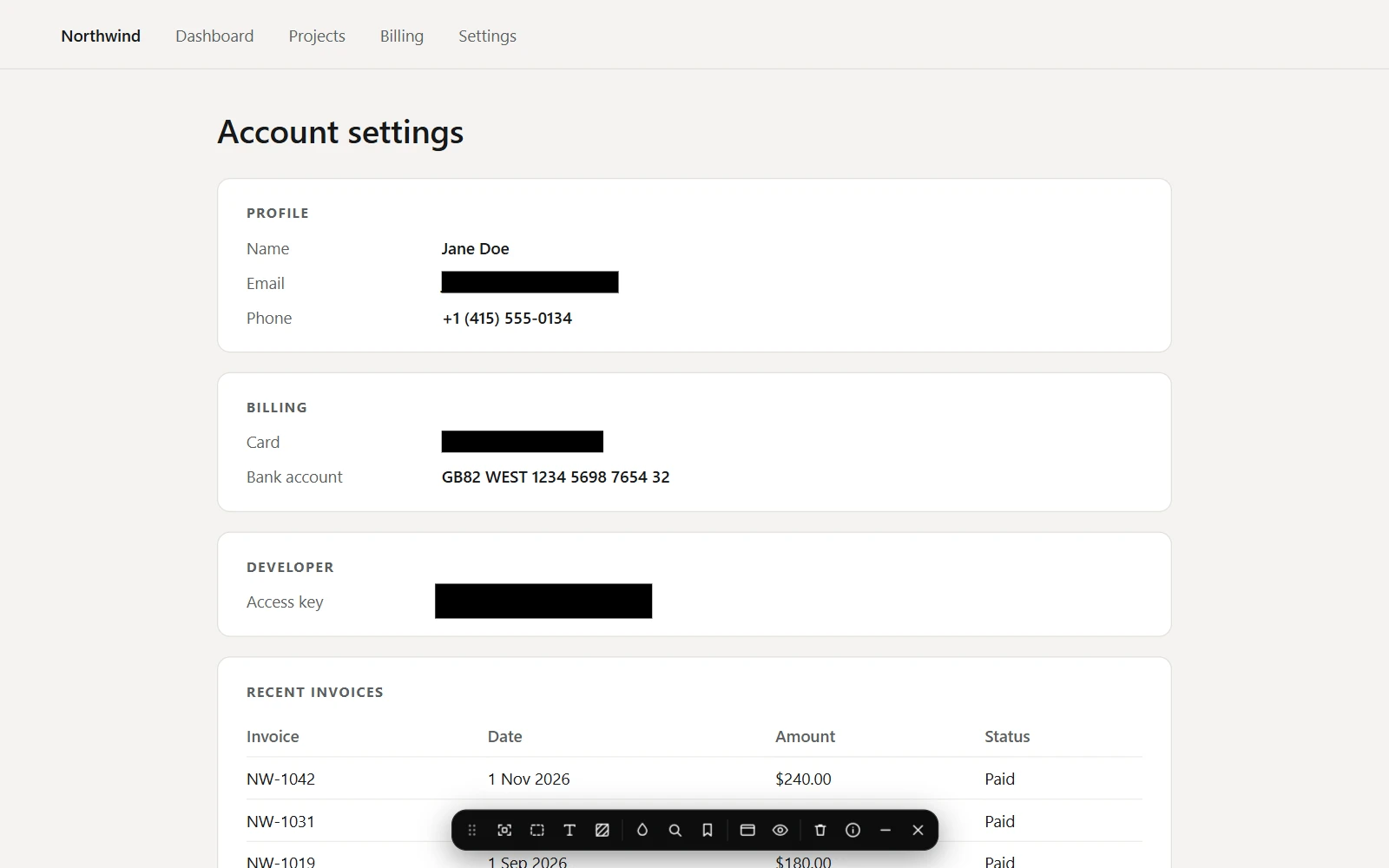
- A small toolbar opens at the bottom of the page.
- Choose a tool, then cover what you want hidden. Press Esc to put the tool down.
Three ways to cover
- Element covers one thing you point at: a line of text, a field, an image or a whole panel. Press ↑ while pointing to take the larger box around it, and ↓ to go back.
- Area covers a rectangle you drag. Hold the pointer near the edge of the window, or of a panel you started in, and the page scrolls, so an area can be taller than the screen.
- Words covers the words you drag across, and nothing else on the line.
Find sensitive data
The magnifier on the toolbar covers every email address, phone number, card number, bank account number, API key, private key and database address it finds on the page, plus any words or patterns you add in Settings. The guide to finding sensitive data covers it in full.
Styles
Black out, the default, is a solid cover and the only style to use for private details. Blur softens what is under it, and can leave large text readable; the toolbar says so when you choose it. Hide makes the part invisible against the page. Choose the default style, and Blur's strength, under Settings → Live blur.
Blur whole page
One button covers the whole page, frames and all, in the style you chose, until you press it again or clear the blurs. It is not saved, so a reload shows the page again. While it is on, the other tools are off.
The toolbar itself
The toolbar is one row. Drag its grip to any of eight spots around the window, or move it with the arrow keys; shrink it to a small pill that shows how many blurs there are. While you work with a tool it steps aside, and it is never part of a capture.
What captures and text do
Every capture mode shows the covers, including over headers that stay pinned while you scroll. While a page has any cover, ScrollSnapshot gives out none of its text: not to the text reader, Page as Markdown, the selection bar or a connected agent. Clear the blurs to read it.
Two captures are refused rather than risk showing something: Turbo at a chosen width, when the page has area or word covers that would land in the wrong place, and a fullscreen video under a cover, because covers cannot draw over fullscreen.