
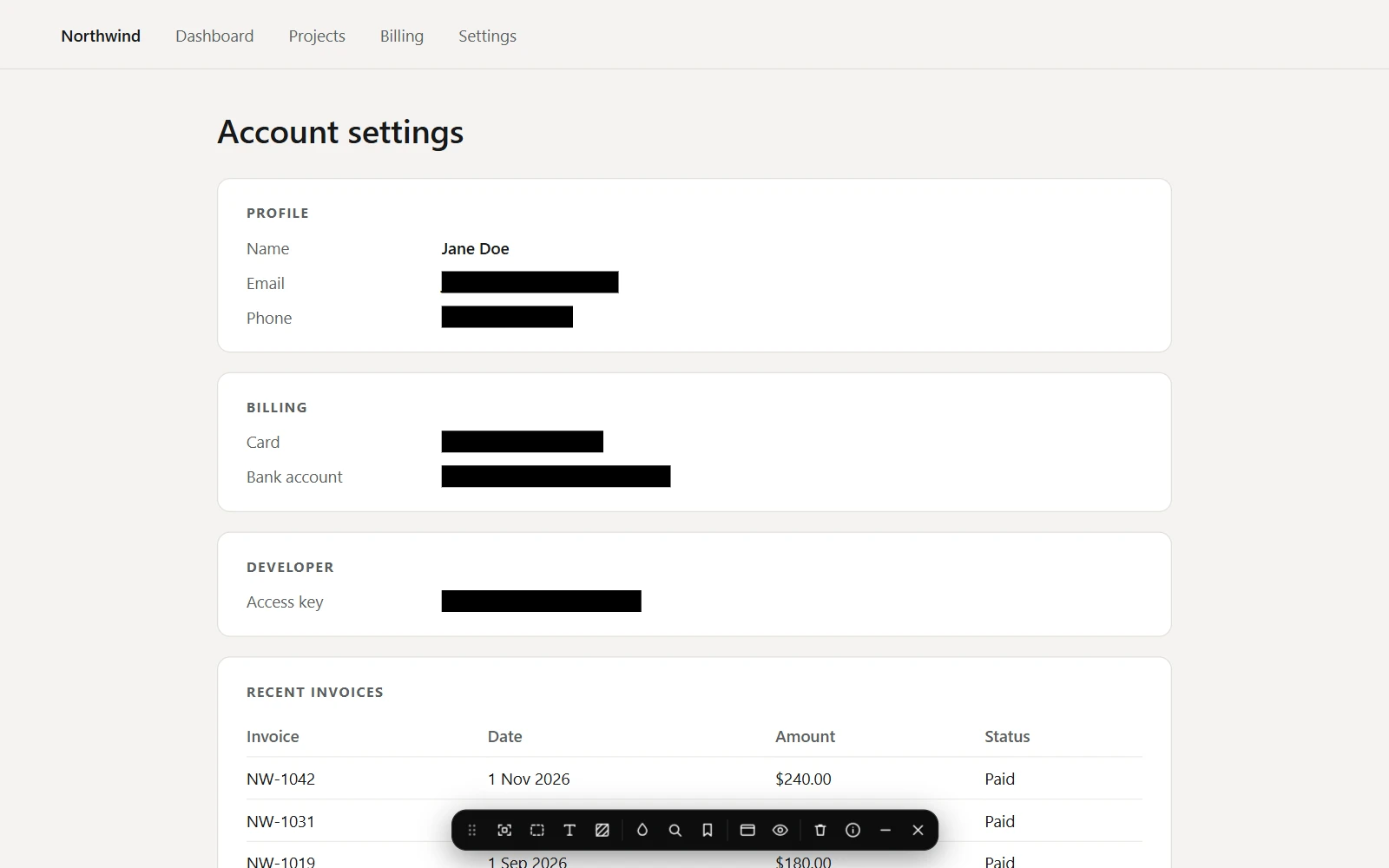
What it looks for
It reads the text in the page, in panels that open later, and in text boxes as you type, and covers a whole box when what is in it matches.
- Email addresses and phone numbers.
- Card numbers that pass the card checksum, and bank account numbers (IBAN) that pass theirs.
- API keys and tokens in the shapes AWS, GitHub, Stripe, Slack, Google, OpenAI and Anthropic use, and JSON web tokens.
- Private key blocks and database connection strings.
Words and patterns of your own
Under Settings → Live blur, Words and patterns takes one entry per line. A plain word or phrase is matched as written; a pattern goes between slashes, like /ticket-[0-9]+/i. A line that is too short, not a valid pattern, or too slow to run safely is flagged and not saved. The list is kept on this device only.
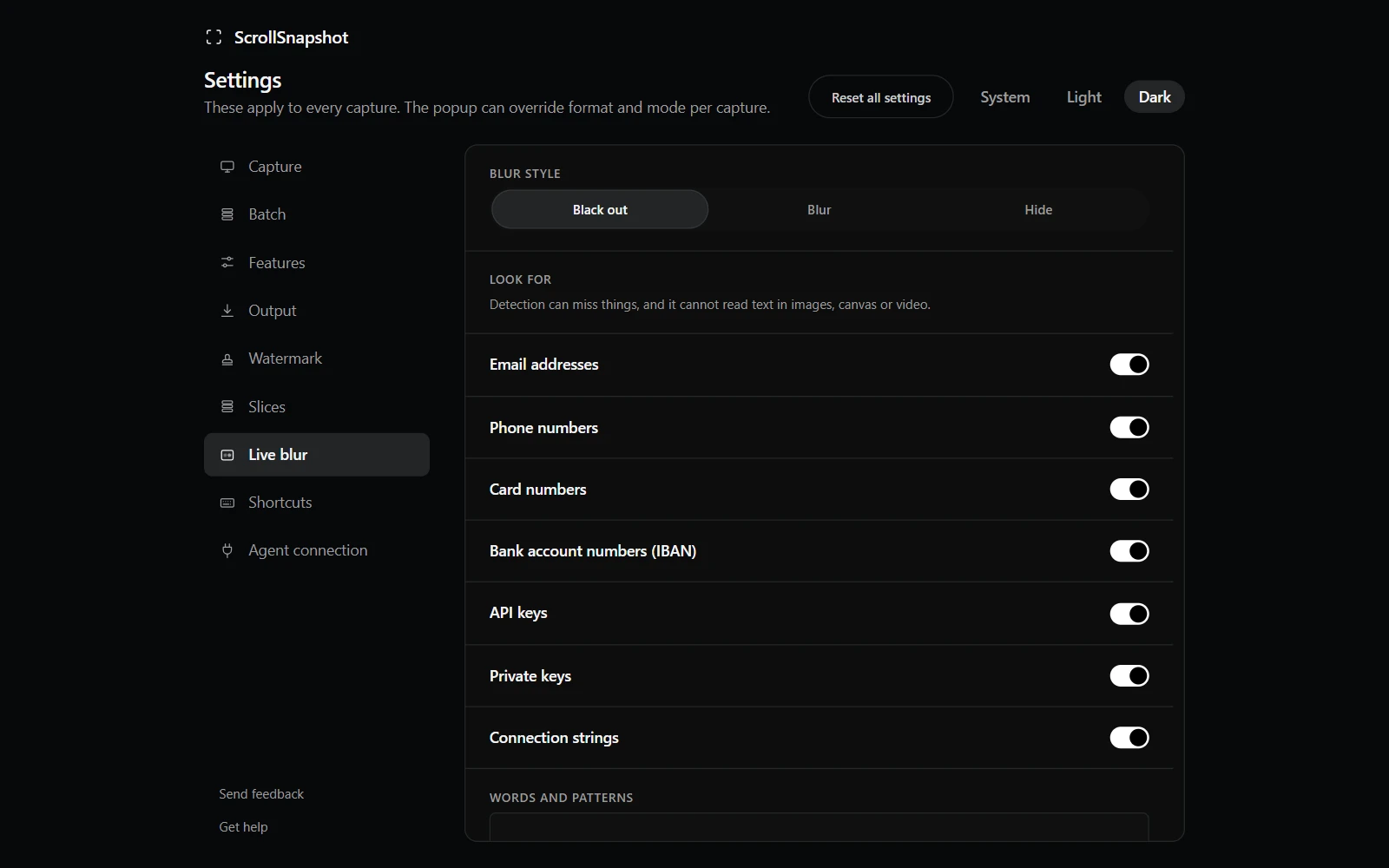
Choose what it looks for
Each category can be switched off under Look for, in the same place. A change reaches open pages at once.
Run it again
Press the magnifier again and the page is read afresh. What it covered stays covered until the new read is done, so nothing is bare in between.