
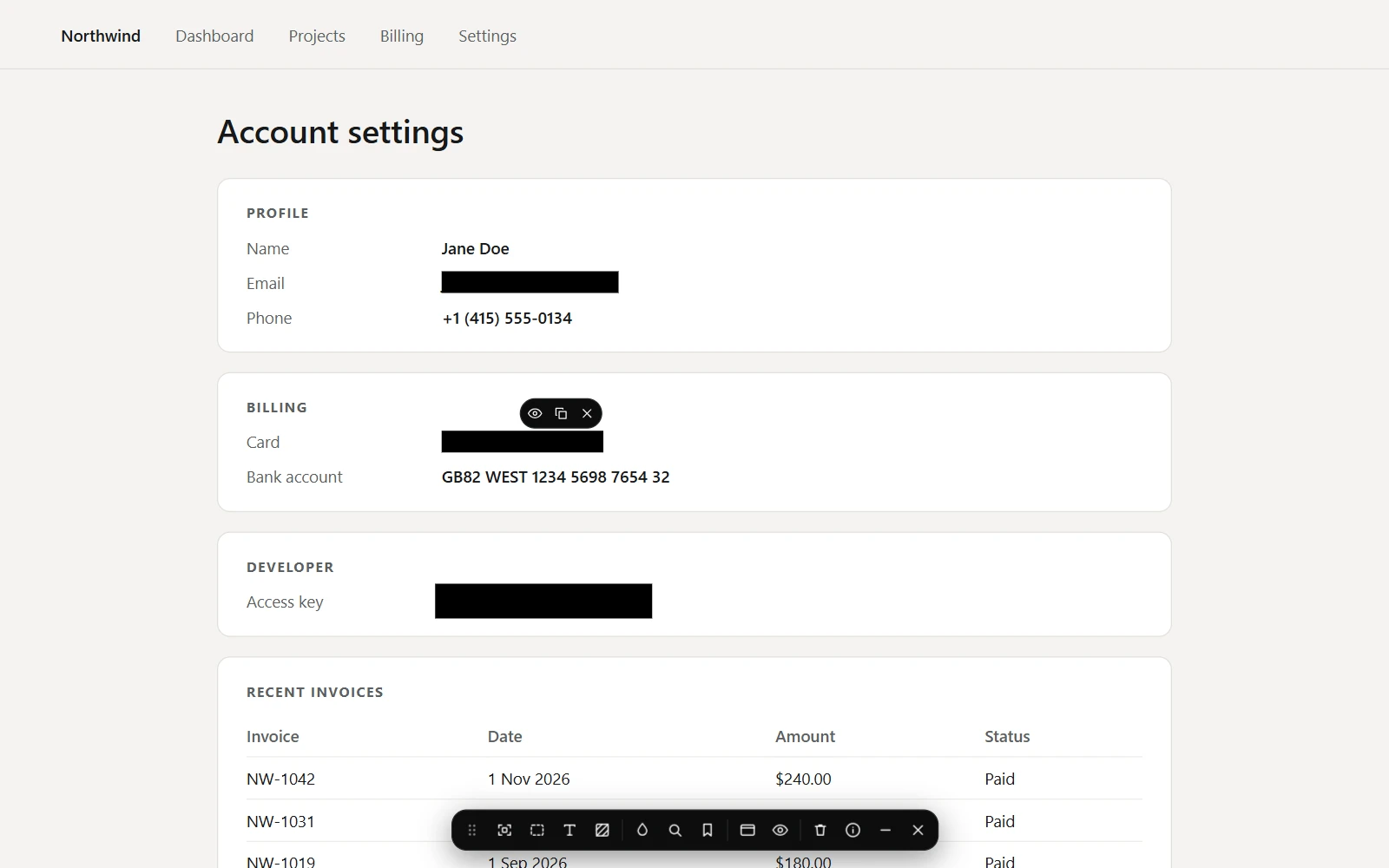
A cover's buttons
- View shows what is under that one cover while you hold it down, and covers it again the moment you let go.
- Copy puts the hidden text on your clipboard without showing it on screen. An area cover has no Copy, since pictures and video have no text.
- Remove takes the cover off; for a kept cover, its rule goes too.
Peek under them all
Hold Ctrl+Alt, or Control+Option on a Mac, to see through every cover on the page while the keys are down.
Hide tab title
On the toolbar, Hide tab title keeps the tab strip from showing the page's title, which often carries a name or an account. Captures taken while it is hidden are named after the site instead.