
One page at a time
The worker runs each full-page capture in order and keeps a result for every successful page. A failed address does not stop the rest. Temporary tabs opened from pasted addresses are closed afterward; tabs that were already open are left alone, and the starting tab is restored.
Before you start
Capture history must be on, or each result would replace the previous one. Batch uses your capture defaults but skips interactive pickers and delays; a queue cannot pause for a separate choice on every page.
Run a batch
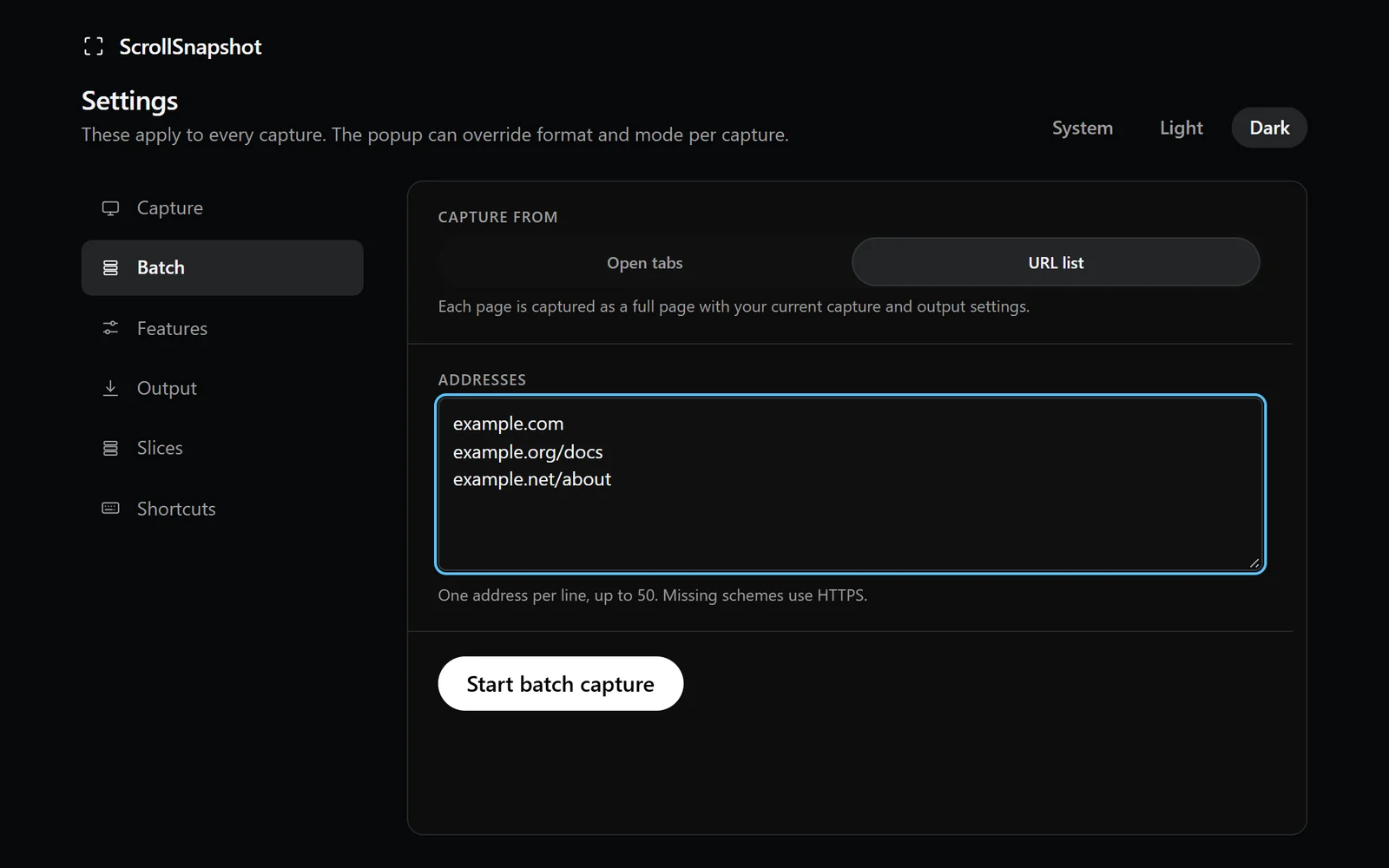
- Open Settings and find Batch capture.
- Choose current-window tabs or paste a web address on each line.
- Start the queue, then review the per-page results and failures in local history.