Set it up once
- Install ScrollSnapshot from the Chrome Web Store if you haven't already: https://chromewebstore.google.com/detail/scrollsnapshot/hhahcllpchhmkgmioaekblbnblodbiic
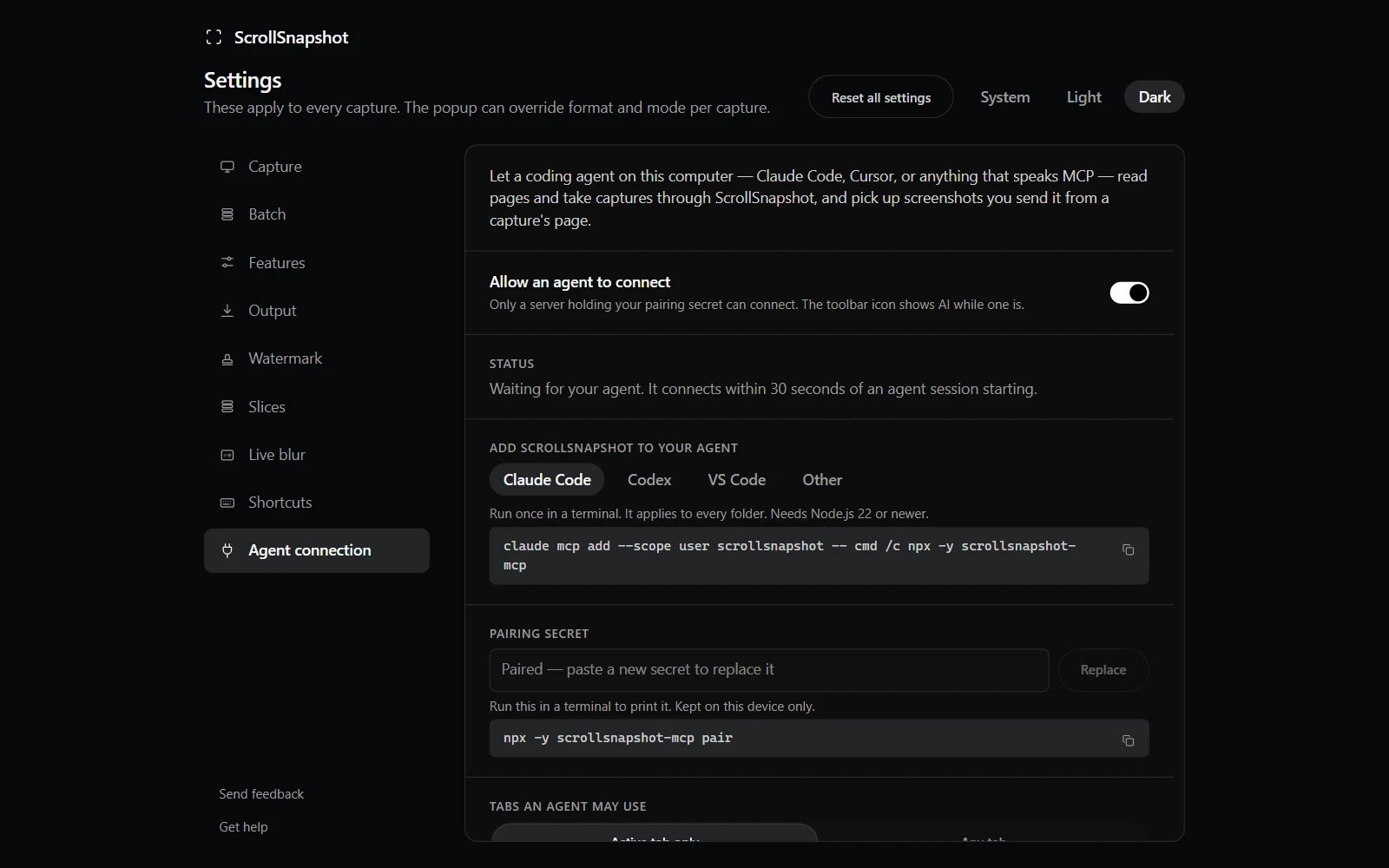
- Open ScrollSnapshot → Settings → Agent connection and turn on Allow an agent to connect.
- Choose your agent. Copy the line shown for it and your operating system, and run it in a terminal (or paste the settings snippet into your client). It needs Node.js 22 or newer; nothing else to download.
- Run npx -y scrollsnapshot-mcp pair, copy the secret it prints, paste it into Settings and press Pair.
- Start your agent. Within 30 seconds the toolbar icon shows AI: it is connected.
- If it does not connect, run npx -y scrollsnapshot-mcp doctor. It checks each link and prints the line that fixes what is wrong.
What an agent can do
Read a page: its outline of headings, landmarks, forms and tables, each with a selector, and its text, plain or as Markdown. Capture it: the screen, the whole page, one element by selector, or an area, returned in tiles sized to keep the agent's token use down, with the full-resolution file saved on disk. Read your capture history, and pick up screenshots you send it.
It can also ask you to choose an area. The region picker opens on your screen, and the note and drawings you add reach the agent as words and coordinates, not only pixels.
Covers and a cleaned-up page
An agent can cover private details with live blur before it captures: everything a selector matches, an area, or whatever Find sensitive data finds. Its covers work like yours, and while they are up the page's text is withheld from it too. It can take off only the covers it added, never yours, and they are not kept.
It can also ask for a capture with Clean up page on or off. Without asking, it gets whatever you chose in the popup. Both need ScrollSnapshot 1.6 or newer.
Which tabs, and what it may change
By default an agent can use only the tab in front of you. Choose Any tab to let it list and capture every open tab.
Turn on Let agents open and reload tabs and the agent can reload a tab to see a change it just made. With Any tab, it can also open a web page in a new tab, such as your local dev server. It can never click, type or run anything on a page.
Where your data goes
ScrollSnapshot hands what an agent asks for only to the agent server on your own computer, after both sides prove they hold the pairing secret. Your agent may then send it to its AI provider, as it does with your code and everything else you show it. The server keeps the captures it receives in a private folder in your home directory and deletes them after seven days.