
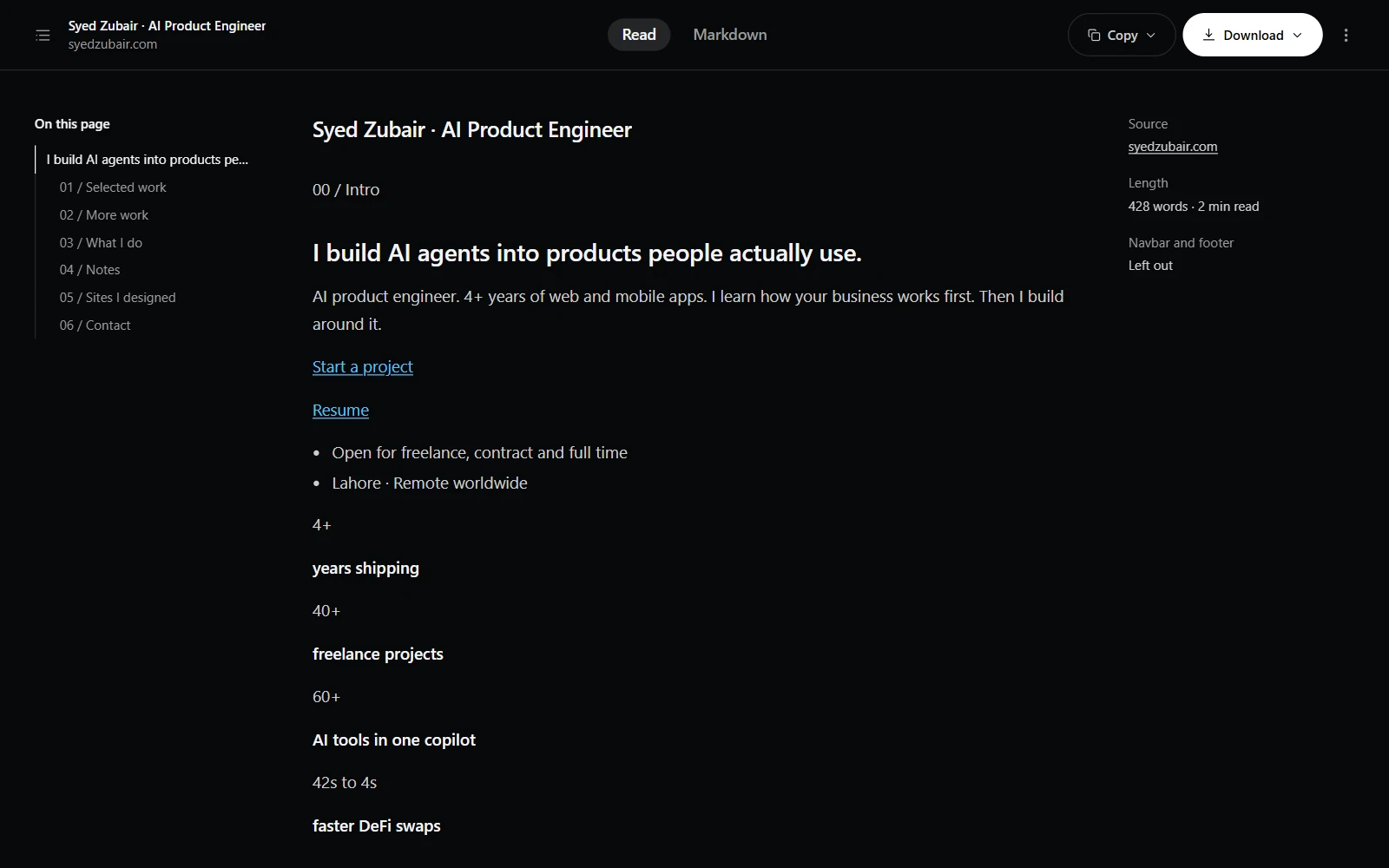
A whole page, from the popup
The Markdown button in the popup's header works on any page, at any time, and takes no screenshot. It opens a small panel: a switch to keep the navbar and footer, Open preview, and a save to a .md file.
Open preview shows the page in its own tab, as a document. The outline on the left follows the section you are reading. The bar at the top switches between the read view and the Markdown itself, copies the Markdown, the plain text or the page link, and downloads a .md or .txt file, or prints it and saves it as a PDF.
Just the part you selected
Turn on Show a Markdown bar when you select text in Settings, under Output. Then, on any page, selecting text brings up a small bar above it: copy the selection as Markdown, copy it as plain text, or save it as a .md file. It is off by default; with it on, a small script is added to the pages you visit so the bar can appear, and it reads only the text you select, only when you press one of its buttons.
What comes through
Headings, emphasis, links, lists, quotes, images, tables and code blocks, with their language where the page says it. Code is kept as code wherever a site puts it, prompts and all, without the line numbers or copy buttons. Menus, sidebars, footers and promo boxes are left out unless you ask to keep the navbar and footer, and tables used only for layout read as their content.